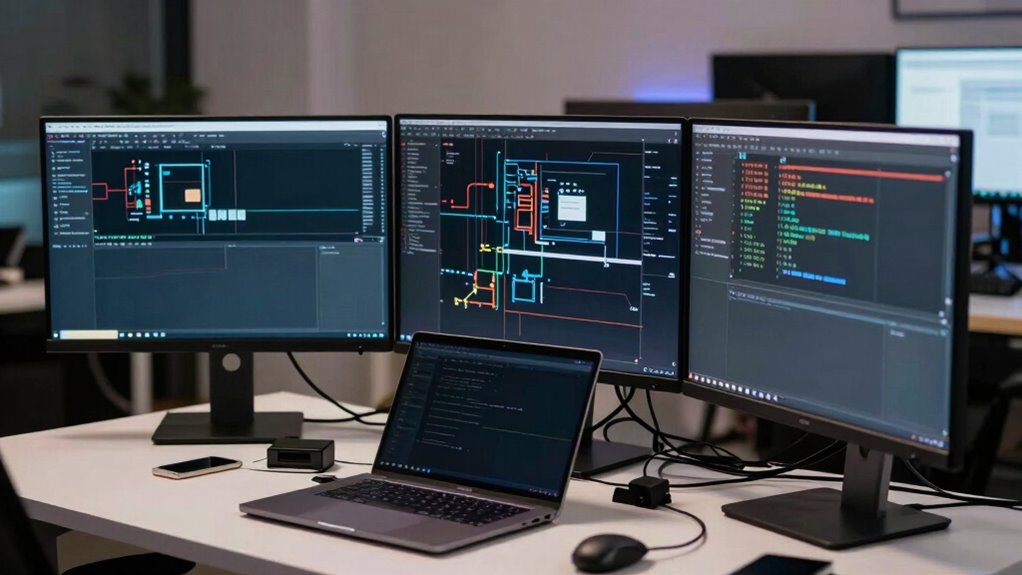

When your base system is wrong, your multi-monitor setup can break because outdated drivers, incompatible hardware, or incorrect OS settings cause recognition and display issues. You might experience flickering, resolution problems, or monitors not being detected properly. Poor cables or adapters also add to instability. Ensuring your system is updated, hardware is compatible, and connections are secure is key. If you want to understand how to fix these issues, keep exploring the solutions.

Get hardware and tech essentials delivered free — and shop member deals
- Fast, free delivery on millions of items
- Access to Prime Big Deal Days deals on October 6–7
- Prime Video, Amazon Music and more included
Key Takeaways
- Outdated or incompatible graphics drivers can cause display flickering, resolution issues, and monitor recognition failures.
- Hardware limitations or insufficient ports may prevent proper multi-monitor support or cause instability.
- Incorrect OS display settings or outdated system software can hinder proper monitor extension and configuration.
- Poor quality or incompatible cables and adapters can disrupt stable connections and signal transmission.
- System or hardware incompatibilities, such as weak power supply or damaged ports, can lead to multi-monitor setup failures.
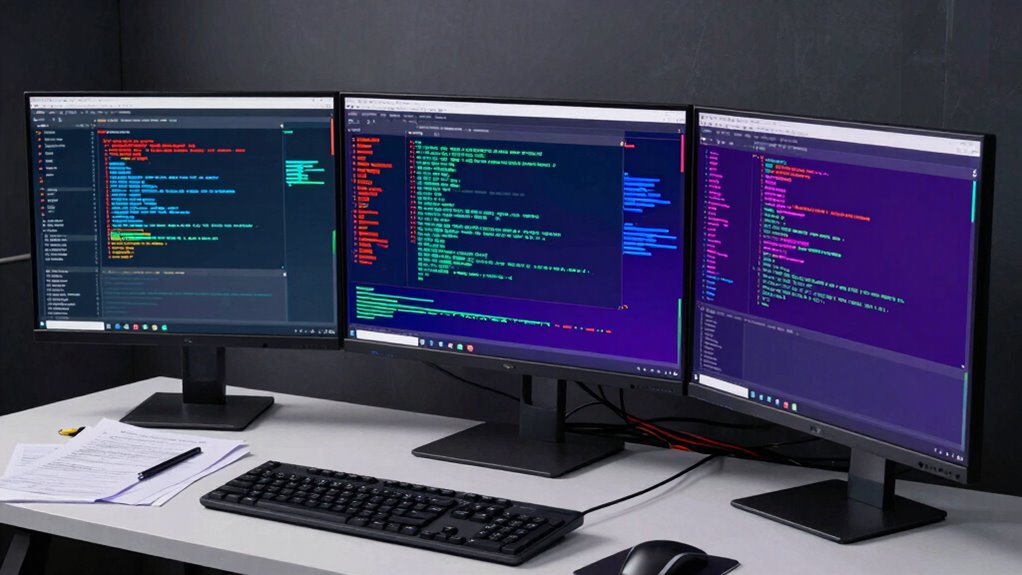
Setting up multiple monitors can boost productivity and improve your workflow, but when your system isn’t configured correctly, everything can go wrong. One of the most common issues stems from outdated or incompatible graphics drivers. Your graphics driver acts as the bridge between your operating system and your graphics hardware, enabling the displays to work smoothly. If the driver isn’t current or doesn’t support multi-monitor setups properly, you might face flickering screens, resolution problems, or displays not being recognized at all. Ensuring that you update your graphics driver regularly is essential. Manufacturers release updates to fix bugs, improve hardware compatibility, and enhance performance, especially when adding new monitors or changing display configurations. Graphics driver support is crucial for maintaining a stable multi-monitor setup. Hardware compatibility is another essential factor. Not all graphics cards support multiple monitors equally well. If your GPU is older or designed for basic tasks, it might struggle with three or more displays. Sometimes, even if your hardware claims support for multi-monitor setups, the specific model or the ports you’re using could pose limitations. For example, using adapters or daisy-chaining monitors without confirming compatibility can lead to instability or inconsistent display output. Sometimes, the ports themselves might be incompatible or insufficient to handle the resolution and refresh rate you want, causing displays to malfunction or not turn on at all. Additionally, you need to verify that your operating system recognizes all connected monitors. Sometimes, the OS might detect the monitors but fail to extend the desktop properly. This often results from driver conflicts or incorrect display settings. Checking your display configuration settings and ensuring each monitor is properly detected and assigned the correct resolution can resolve many issues. If the system struggles to recognize your monitors, it might be due to a lack of support within your current graphics driver or an outdated OS. Upgrading your system’s hardware components can also help improve multi-monitor performance, especially if you regularly work with multiple displays. Furthermore, hardware limitations can also contribute to multi-monitor problems, especially if your system’s power supply or cooling isn’t adequate for increased GPU load. In some cases, the problem isn’t just software but hardware issues. Loose cables, damaged ports, or incompatible adapters can cause displays to disconnect intermittently or not display at all. Confirm that your cables are secure and functioning correctly. Using high-quality cables and ensuring they are compatible with your setup can prevent many connection issues. Additionally, system compatibility and ensuring your hardware meets the demands of your multi-monitor setup can prevent many common issues. If you’re using adapters, verify they support the resolution and refresh rate your monitors require.
graphics driver update for multi-monitor setup
As an affiliate, we earn on qualifying purchases.
As an affiliate, we earn on qualifying purchases.
Frequently Asked Questions
Can Software Updates Fix Multi-Monitor Issues Caused by Hardware Problems?
Software updates can sometimes fix multi-monitor issues caused by hardware problems, but only if the root cause is related to software or driver compatibility. They may improve hardware compatibility, enhance display calibration, and resolve bugs affecting multi-monitor performance. However, if the hardware itself is faulty or incompatible, updates won’t fix the problem. In such cases, you might need to replace or upgrade hardware components for a reliable multi-monitor setup.
Do Graphics Card Drivers Affect Multi-Monitor Setup Stability?
Think of your graphics card drivers like the foundation of a building—if they’re incompatible, the whole structure risks instability. Yes, drivers affect multi-monitor setup stability; incompatible or outdated drivers can cause flickering, resolution issues, or crashes. Ensuring driver compatibility improves graphics performance and keeps your monitors working smoothly. Regular updates and proper installation are key to preventing these issues and maintaining a stable, multi-monitor environment.
How Does System RAM Impact Multi-Monitor Performance?
Your system RAM impacts multi-monitor performance because RAM limitations can create system bottlenecks, slowing down data processing when running multiple displays. Insufficient RAM means your system struggles to handle the increased workload, causing lag, stuttering, or crashes. To guarantee smooth multi-monitor operation, upgrade your RAM if you notice performance issues, as more memory helps your system manage the added demands without bottlenecks.
Can External Peripherals Cause Conflicts With Multi-Monitor Setups?
Imagine your peripherals—your keyboard, mouse, external drives—lining up like a busy street. Sometimes, peripheral conflicts happen because of hardware compatibility issues, causing your multi-monitor setup to glitch or disconnect. These conflicts can interfere with display detection or input recognition. To fix this, make sure your peripherals are compatible with your system, update drivers, and check for conflicts in device manager. Proper hardware compatibility keeps your multi-monitor experience smooth and hassle-free.
Is It Necessary to Upgrade My OS for Better Multi-Monitor Support?
Upgrading your operating system can ensure improved multi-monitor support, especially if your current OS isn’t optimized for your hardware. A newer OS often offers better hardware compatibility, smoother display management, and enhanced graphics drivers, reducing glitches and conflicts. If you’re experiencing issues or want a more seamless multi-monitor experience, upgrading guarantees your system is up-to-date and fully compatible with your hardware, making multi-monitor setups more reliable and efficient.
As an affiliate, we earn on qualifying purchases.
Conclusion
Think of your multi-monitor setup as a finely tuned orchestra. When the base system is off-key—be it drivers, hardware, or settings—everything falls apart, and the harmony is lost. Fixing the core issues is like tuning each instrument; suddenly, the symphony comes back to life. Don’t let a shaky foundation turn your multi-monitor experience into noise. Get the system right, and you’ll have a seamless, harmonious workspace that sings.
high-quality HDMI cables for multiple monitors
As an affiliate, we earn on qualifying purchases.
As an affiliate, we earn on qualifying purchases.
multi-monitor compatible graphics card
As an affiliate, we earn on qualifying purchases.
As an affiliate, we earn on qualifying purchases.
Fall Picks
fall essentials
As an affiliate, we earn on qualifying purchases.