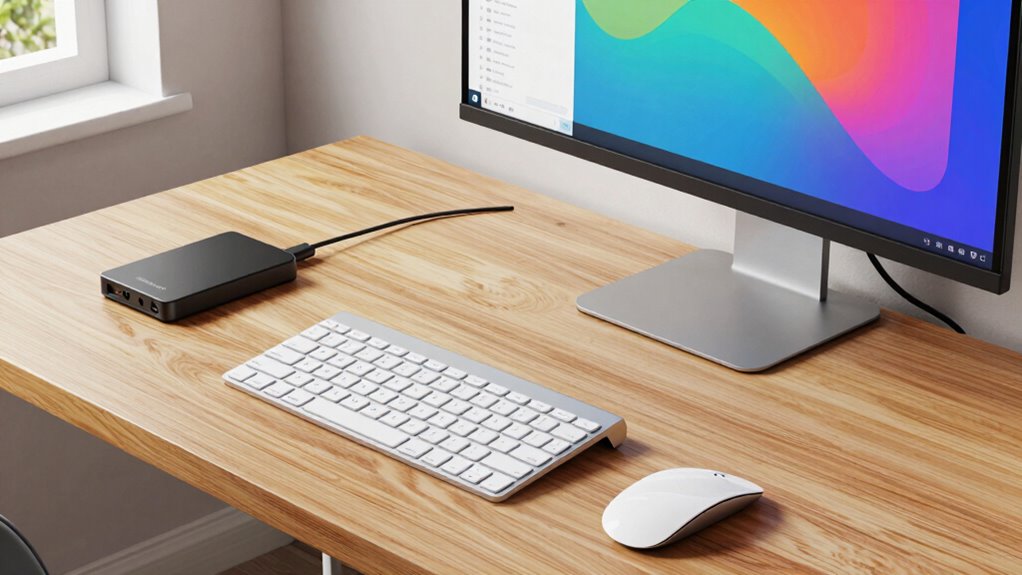

Your work-from-home backup rule should prioritize regular, automated backups of all essential data to secure cloud services or external drives. Keep an extra device ready with necessary software installed, and guarantee a reliable internet backup like a mobile hotspot is available. Organize your digital workspace and protect your network to minimize disruptions. Following these steps helps you recover quickly from failures, keeping productivity steady. Continue exploring these strategies to strengthen your remote work resilience even more.

Get hardware and tech essentials delivered free with Prime
- Fast, free delivery on millions of items
- Prime Video, Amazon Music and more included
- Member-only deals all year
Key Takeaways
- Regularly back up all critical files to cloud services or external drives to ensure quick recovery.
- Automate backup processes to prevent manual errors and data loss.
- Maintain multiple backup copies in different locations for added security.
- Use version control to track changes and restore previous file versions easily.
- Test backup and recovery procedures periodically to ensure reliability during emergencies.
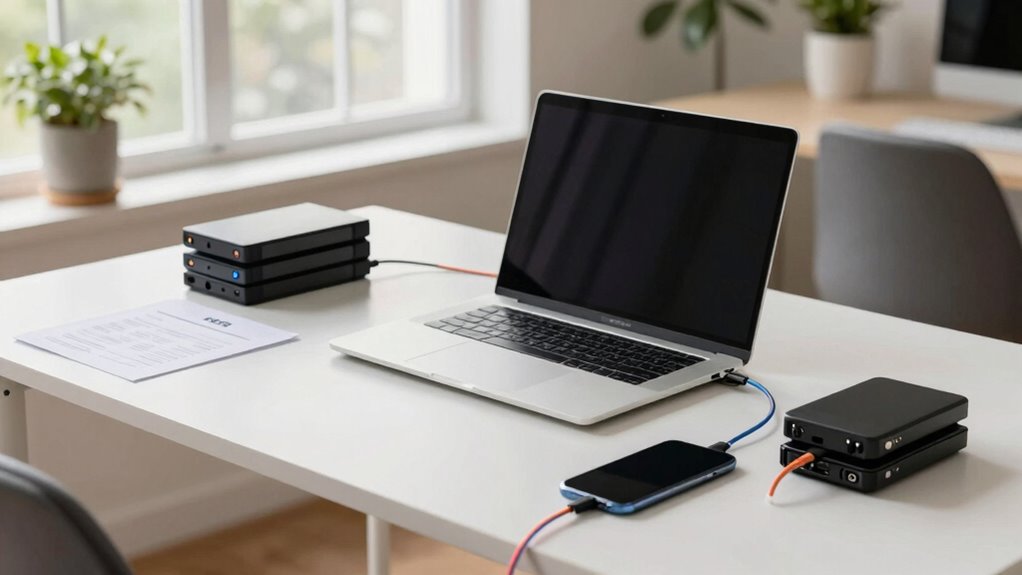
When setting up your work-from-home (WFH) environment, having a solid backup rule is vital to prevent disruptions. In today’s remote work landscape, your ability to stay productive hinges on how well you prepare for unforeseen issues. Implementing a reliable backup plan ensures that technical failures, power outages, or connectivity problems don’t derail your day. It’s especially important when collaborating remotely, as delays can ripple through your team, affecting deadlines and project flow. By establishing a backup rule, you safeguard your workflow and maintain seamless remote collaboration, even when disruptions occur.
A key aspect of your backup rule involves data protection. Regularly backing up your files to a cloud service or external drive means you won’t lose critical documents if your device crashes or gets compromised. This habit allows you to quickly recover work without scrambling for lost data, keeping your projects on track. Additionally, make sure your backup solutions are automated where possible, so you don’t have to remember to do it manually. Automation reduces the risk of forgetting and guarantees your data remains current. When sharing files with colleagues or clients, establish a consistent method for version control and backups, which helps avoid confusion and duplication. This way, everyone has access to the most recent and accurate information, fostering smooth remote collaboration.
Your backup rule should also include having an alternate device ready. For example, if your primary laptop fails, you should have a backup device—like a tablet or desktop—already configured with necessary software and access. This quick switch minimizes downtime and allows you to keep working without delay. Pair this with a reliable internet connection—consider a mobile hotspot as a backup—so your work continues even if your usual network drops out. This ensures uninterrupted remote collaboration, especially during critical meetings or deadlines. Incorporating redundant systems into your setup enhances your resilience and preparedness for unexpected technical issues. Additionally, maintaining a well-organized digital workspace can streamline your recovery process and reduce stress during technical failures. Ensuring your network security is robust is also crucial, as it protects your data and devices from potential threats that could cause disruptions.
Ergonomic adjustments are equally vital in your backup strategy. A well-designed workspace reduces physical strain and prevents discomfort that might force you to pause work. Keep your ergonomic setup portable or adaptable—such as adjustable chairs or portable stands—so you can quickly modify your environment if needed. This flexibility guarantees a comfortable, healthy workspace, which boosts productivity and focus. Ensuring your workspace is adaptable also supports remote work best practices, which are essential for maintaining efficiency and well-being.
In essence, your backup rule should be all-encompassing: protect your data, have alternate devices and connections ready, and ensure your workspace is adaptable. These measures allow you to stay resilient in your WFH setup, maintain smooth remote collaboration, and sustain productivity despite unexpected disruptions. By proactively preparing, you’ll find it easier to navigate the challenges of remote work while keeping your focus on your tasks.
Products Worth Considering

DJI Osmo Pocket 3 Vlogging Camera with 1-Inch CMOS Sensor and 4K Video

Apple Watch SE 3 GPS 44mm Smartwatch

Samsung 27 Odyssey OLED G5 (G50SF) QHD QD-OLED Gaming Monitor
As an affiliate, we earn on qualifying purchases.
Frequently Asked Questions
How Often Should I Back up My Work Files?
You should back up your work files daily to prevent data loss. Use file versioning to keep track of changes and easily revert to previous versions if needed. Cloud synchronization guarantees your files stay up-to-date across devices and are safely stored off-site. Regular backups, ideally every day, give you peace of mind and protect your work from hardware failures, accidental deletions, or cyber threats.
What Storage Options Are Best for Remote Backups?
You should use a combination of cloud storage and external drives for remote backups. Cloud storage offers easy, automatic backups accessible from anywhere, making it ideal for quick recovery. External drives provide a reliable, physical backup that safeguards against cyber threats and hardware failures. Both options together give you an all-inclusive backup system, ensuring your work files stay safe, accessible, and protected regardless of any unexpected issues.
How Can I Secure My Backup Data?
To safeguard your backup data, you should use strong encryption practices to protect your files both during transfer and storage. Regularly update your encryption methods to stay ahead of potential threats. Additionally, test your data recovery processes periodically to confirm you can restore your backups quickly in case of data loss. This way, your backups remain safe, accessible, and reliable when you need them most.
What Should I Do if My Backup Fails?
When your backup fails, think of it like a missed call from your favorite contact—don’t ignore it. First, check your cloud synchronization and make certain your internet connection is stable. Then, manually trigger an automatic scheduling backup. If issues persist, review logs for errors, update your backup software, and consider switching to a different provider or storage option. Regular testing prevents surprises and keeps your data safe.
Are There Any Free Backup Tools Suitable for WFH?
Yes, there are free backup tools suitable for WFH that offer cloud synchronization and encryption methods. Tools like Google Drive, Dropbox, and OneDrive provide free plans with automatic syncing, ensuring your files stay updated across devices. They also use encryption to protect your data during transfer and storage. These options help you back up important files securely without extra cost, making them ideal for remote work setups.
Conclusion
Remember, a stitch in time saves nine. By establishing a reliable backup routine for your WFH setup, you safeguard your work against unexpected mishaps. Don’t wait until it’s too late—regular backups keep your files safe and your stress low. Embrace this simple rule, and you’ll work confidently, knowing your hard work is protected. After all, being prepared today means fewer headaches tomorrow. Stay proactive, stay protected!