One of the biggest cooling mistakes that shortens your gaming laptop’s performance is neglecting proper airflow and cleaning dust from vents and fans. Over time, dust buildup and poor ventilation cause overheating, leading to thermal throttling and hardware damage. This can result in lag, frame drops, and reduced lifespan. If you keep ignoring these cooling practices, your laptop’s performance will suffer sooner. Stick around to discover simple tips that can keep your system cooler and running smoothly.

Get hardware and tech essentials delivered free with Prime
- Fast, free delivery on millions of items
- Prime Video, Amazon Music and more included
- Member-only deals all year
Key Takeaways
- Neglecting regular cleaning of vents and fans causes dust buildup, leading to overheating and performance drops.
- Using inadequate or poorly positioned external cooling solutions can trap heat instead of dissipating it.
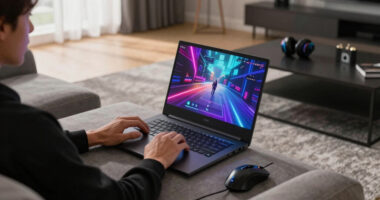
- Operating the laptop on soft surfaces like beds or cushions blocks airflow and increases heat.
- Ignoring thermal performance monitoring prevents early detection of overheating issues.
- Overloading the system with high settings without proper cooling causes thermal throttling and hardware stress.

Many gamers overlook a simple mistake that can drastically reduce their gaming laptop’s performance: neglecting proper cooling. When your laptop overheats, it’s not just about discomfort; it directly impacts how well your system runs. Overheating causes thermal throttling, where your CPU and GPU slow down to prevent damage. This results in lag, frame drops, and a noticeable decline in gaming quality. The problem isn’t just the heat itself, but the way it interacts with your hardware limitations. Your laptop’s components are designed to operate within certain temperature ranges, and once those limits are exceeded, performance suffers. If you ignore cooling, you’re essentially forcing your hardware to work beyond its capacity, which accelerates wear and reduces longevity. Proper thermal management practices are essential to maintaining optimal performance.
Many players focus solely on software optimization—updating drivers, tweaking in-game settings, or managing background processes—thinking it’ll fix performance issues. While these adjustments are helpful, they only go so far if your hardware is overheating. Even the best software tweaks won’t compensate for poor thermal management. That’s why proper cooling is fundamental. Good airflow, clean vents, and possibly external cooling solutions help maintain ideal temperatures, ensuring your laptop performs at its peak without hitting thermal limits. When your system stays cool, it can sustain higher clock speeds longer, giving you smoother gameplay and better responsiveness. Regularly monitoring thermal performance can help you identify potential issues before they cause significant damage. Additionally, understanding the importance of cooling can motivate you to implement better hardware maintenance habits. Maintaining a consistent cooling efficiency is crucial for keeping your hardware operating safely and effectively. Incorporating proper ventilation habits can further enhance your cooling effectiveness and prevent overheating.
Neglecting cooling also means you’re fighting a losing battle against hardware limitations. Your laptop’s components are powerful, but they have their boundaries. If those boundaries are consistently pushed due to heat buildup, you risk permanent damage and reduced lifespan. Regularly cleaning dust from vents and fans, using cooling pads, and avoiding gaming in hot environments all help extend your hardware’s health. Remember, software optimization alone can’t fix hardware overheating; it can only mitigate some issues temporarily. To truly maximize performance, you need to address the root cause—insufficient cooling. When you keep your system cool, you’re allowing your hardware to operate within its designed parameters, which means better stability, longer lifespan, and sustained high performance.
In the end, understanding the importance of cooling and taking proactive steps to maintain it is vital. Neglecting this aspect compromises your hardware’s potential and shortens your gaming laptop’s effective lifespan. Don’t let heat undermine your gaming experience—invest in proper cooling solutions and keep your system running smoothly, always operating within safe temperature ranges.
As an affiliate, we earn on qualifying purchases.
Frequently Asked Questions
How Often Should I Clean My Gaming Laptop’s Cooling System?
You should clean your gaming laptop’s cooling system every 3 to 6 months, depending on usage and environment. Regularly check for dust buildup, which can block airflow and cause overheating. When cleaning, consider replacing the thermal paste if it’s old or dried out, as it improves heat transfer. Keeping the cooling system free of dust and ensuring fresh thermal paste helps maintain peak performance and prevents thermal throttling during intense gaming sessions.
Do Third-Party Cooling Pads Actually Improve Performance?
Like a knight’s shield, third-party cooling pads can improve your gaming experience by boosting cooling pad effectiveness. They often help reduce overheating risks, especially during intense sessions. However, their actual impact varies; some may barely help, while others considerably lower temperatures. Remember, they’re not magic. Combining a quality cooling pad with proper maintenance and settings ensures your laptop stays cool, preventing performance drops caused by overheating.
Can Overclocking Affect My Laptop’s Cooling Efficiency?
Overclocking your laptop can negatively affect cooling efficiency because it increases the CPU and GPU workload, generating more heat. This raises overclocking risks, such as overheating and thermal throttling, which can damage components or reduce performance. To maintain ideal cooling efficiency, you should monitor temperatures closely, improve airflow, and avoid aggressive overclocking. Taking these precautions helps balance performance gains with your laptop’s cooling capabilities.
What Are Signs of Cooling System Failure in Gaming Laptops?
You’ll notice signs of cooling system failure if your gaming laptop’s fan noise increases or becomes erratic, indicating the fan struggles to cool the system. Over time, degraded thermal paste can cause overheating, leading to thermal throttling or shutdowns. Keep an eye on temperature spikes, unexpected crashes, or lag during gaming sessions. Regularly cleaning vents and replacing thermal paste can help prevent these issues and maintain peak cooling performance.
Is It Better to Use a Laptop on a Desk or a Soft Surface?
It’s better to place your gaming laptop on a desk rather than a soft surface. Laptop placement on a hard, flat surface guarantees proper airflow and prevents overheating. Soft surfaces like beds or cushions can block vents and trap heat, reducing cooling efficiency. Surface materials matter because hard surfaces like wood or metal help dissipate heat, while soft materials insulate and trap warmth, risking performance drops and potential damage.
As an affiliate, we earn on qualifying purchases.
Conclusion
If you neglect proper cooling, you’re risking your gaming laptop’s lifespan — it’s like inviting a wildfire into your device. Overheating can turn your powerful machine into a sluggish, broken mess faster than you can say “game over.” Don’t let a simple cooling mistake destroy your gaming experience. Take action now: invest in good cooling solutions, keep vents clear, and always monitor temperatures. Your high-performance gaming beast deserves more than just a quick burst of fresh air!
As an affiliate, we earn on qualifying purchases.
As an affiliate, we earn on qualifying purchases.
Halloween Picks
halloween
As an affiliate, we earn on qualifying purchases.