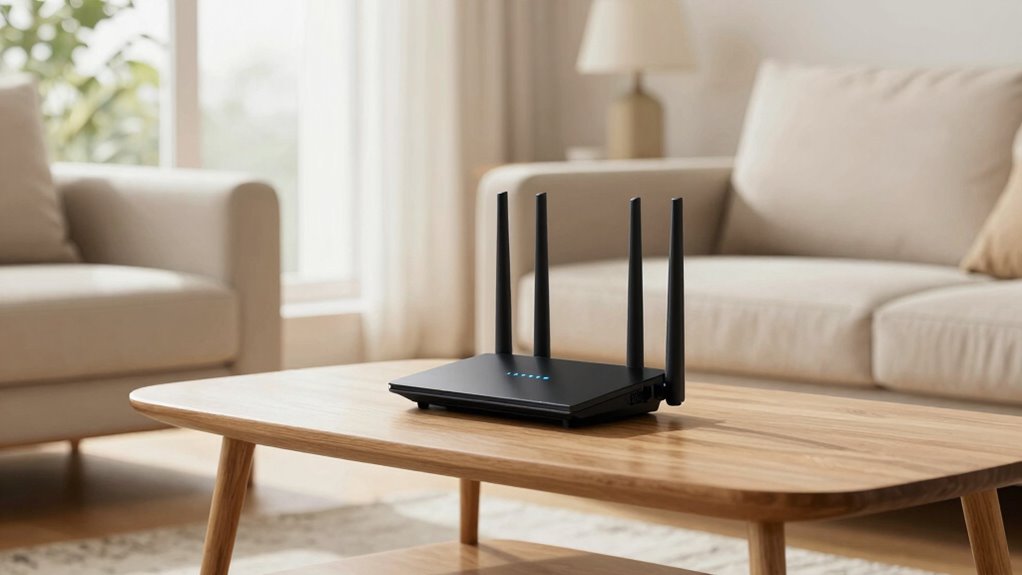

To make your Wi-Fi feel faster, start by placing your router in a central, open spot away from thick walls or metal objects. Elevate it on a shelf or high table for even coverage, and keep it away from electronics like microwaves or cordless phones that cause interference. Using these tips can boost your signal quality and reliability, almost like upgrading your plan. Want to uncover more simple tricks to maximize your speed? Keep exploring for even better results.

Get hardware and tech essentials delivered free with Prime
- Fast, free delivery on millions of items
- Prime Video, Amazon Music and more included
- Member-only deals all year
Key Takeaways
- Place the router in a central, elevated location for even signal distribution and improved speed.
- Keep the router away from thick walls, metal objects, and electronic interference sources.
- Use a mesh network or range extenders to eliminate dead zones, enhancing overall coverage.
- Avoid placing the router near microwaves, cordless phones, or other devices that cause signal interference.
- Position the router in an open, unobstructed space to maximize wireless performance and speed.
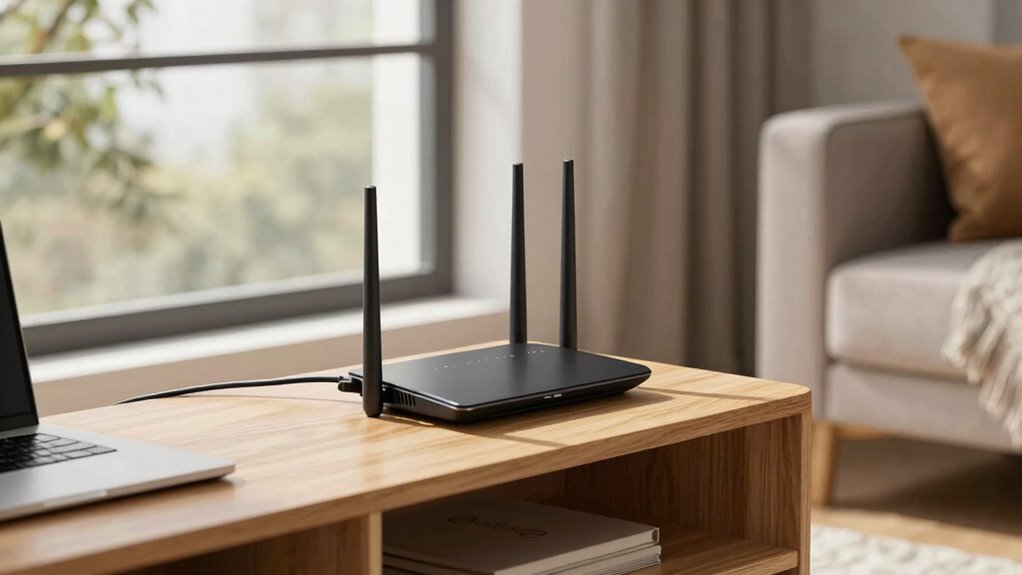
Ever wonder why your Wi-Fi signal drops in certain areas of your home? It’s frustrating, especially when you’re trying to stream a movie or get work done. The main culprit often isn’t your internet plan but the way your router is placed. Wireless interference from appliances like microwaves, cordless phones, and Bluetooth devices can disrupt your signal, causing those annoying dead zones where Wi-Fi barely reaches. Moving your router to the right spot can dramatically improve coverage and speed, making it feel like you’ve upgraded to a faster plan without paying extra.
Proper router placement boosts Wi-Fi coverage and speed, reducing dead zones without extra costs.
The key is to position your router away from potential sources of interference. Keep it clear of thick walls, metal objects, and electronic devices that emit signals on similar frequencies. For example, placing your router near a microwave or a cordless phone can cause wireless interference that hampers your connection. Instead, find a central, open location in your home, preferably elevated—like on a shelf or high table. This helps the Wi-Fi signal spread evenly across your space, reducing signal dead zones and dead spots. When your router is tucked away in a corner or behind furniture, it’s easy to develop weak spots, especially on the far end of your house.
Another step is to elevate your router’s position. Wi-Fi signals radiate outward and downward, so placing it higher up helps maximize coverage. Avoid placing it near large metal objects or appliances that might absorb or reflect signals. Also, keep it away from other electronic devices that operate on similar frequencies, such as baby monitors or wireless speakers, which can create wireless interference and slow down your connection. Ensuring that your router is placed in a location with minimal wireless interference can significantly boost your signal quality. Additionally, understanding the frequency bands your router uses can help optimize performance, as dual-band routers can switch between 2.4 GHz and 5 GHz for better reliability. Using modern wireless standards can provide faster speeds and better coverage, further improving your network’s performance. Incorporating proper placement strategies can help you get the most out of your existing equipment without needing to upgrade.
You should also consider the layout of your home. Thick walls, especially those made of brick or concrete, can block Wi-Fi signals, causing those dreaded dead zones. If you have a large or multi-story home, it might be worth investing in a mesh network or adding range extenders. These devices can help distribute your Wi-Fi more evenly, eliminating dead zones and boosting overall speed. Proper placement of these devices is just as crucial to ensure optimal coverage throughout your space.
Ultimately, the right placement of your router isn’t just about convenience; it’s about optimizing your wireless environment. By minimizing wireless interference and strategically positioning your router, you’ll notice faster speeds, more reliable connections, and fewer interruptions. It’s a simple fix that can feel like a speed upgrade, giving you better performance without the need for new equipment or complicated setups. Paying attention to home layout and potential obstacles can help you achieve the best possible Wi-Fi coverage.
As an affiliate, we earn on qualifying purchases.
Frequently Asked Questions
How Often Should I Reposition My Router for Optimal Performance?
You should reposition your router whenever you notice a drop in signal strength or increased wireless interference. Ideally, check every few months to guarantee peak performance. Keep it central, elevated, and away from electronics that cause interference. Regular adjustments help you maintain strong wireless signals, minimize dead zones, and improve overall speed. Staying proactive with router placement ensures your Wi-Fi stays fast and reliable, no matter what devices you use.
Can Router Placement Affect Connected Device Battery Life?
Imagine your device’s battery as a delicate dance partner, gracefully moving with the rhythm of a steady signal. Poor router placement causes wireless interference and weak signal strength, making your device work harder. This extra effort drains the battery faster. By positioning your router ideally, you reduce interference, boost signal strength, and help your device conserve energy, allowing it to dance longer without needing a recharge.
Does Router Height Impact Wi-Fi Speed Significantly?
Yes, router height impacts Wi-Fi speed considerably. When you place your router higher, it reduces wireless interference and signal attenuation caused by furniture and walls. Elevated placement allows the signal to spread more evenly, boosting speed and stability. Keep your router elevated and clear of obstructions to minimize interference. This simple adjustment can make a noticeable difference in your Wi-Fi performance, ensuring faster, more reliable connections throughout your space.
Are There Best Materials for Building a Router Stand?
You should choose materials that balance router aesthetics and material durability for your stand. Opt for sleek, lightweight options like acrylic or glass for a modern look, or sturdy materials like wood or metal for longevity. These materials not only support your router securely but also enhance its appearance, creating a clean, organized space. Prioritizing durability guarantees your stand lasts, while good aesthetics keeps your setup visually appealing.
How Do I Test if My New Placement Improves Speed?
To test if your new router placement improves speed, run a speed test on your device before and after relocating the router. Check for increased signal range and reduced wireless interference, especially in previously weak spots. Use a consistent testing device and time of day to get accurate results. If speeds improve and the signal reaches more areas, your placement adjustment is effective.
As an affiliate, we earn on qualifying purchases.
Conclusion
So, streamline your signal by shifting and stacking your router, sparing yourself the slow, stuttering stream. With a simple, strategic spot, you’ll see a significant, satisfying speed surge. Say goodbye to buffering blunders and hello to seamless surfing, all through smart placement. Make the move, master the method, and enjoy the swift, smooth streams you deserve. Your faster, freer Wi-Fi waits just a placement point away—so get set, go, grow!
As an affiliate, we earn on qualifying purchases.
As an affiliate, we earn on qualifying purchases.
Fall Picks
fall essentials
As an affiliate, we earn on qualifying purchases.