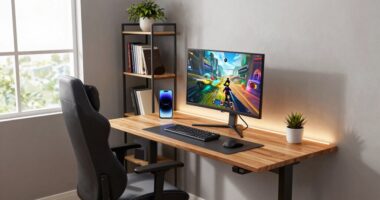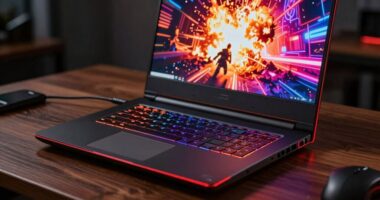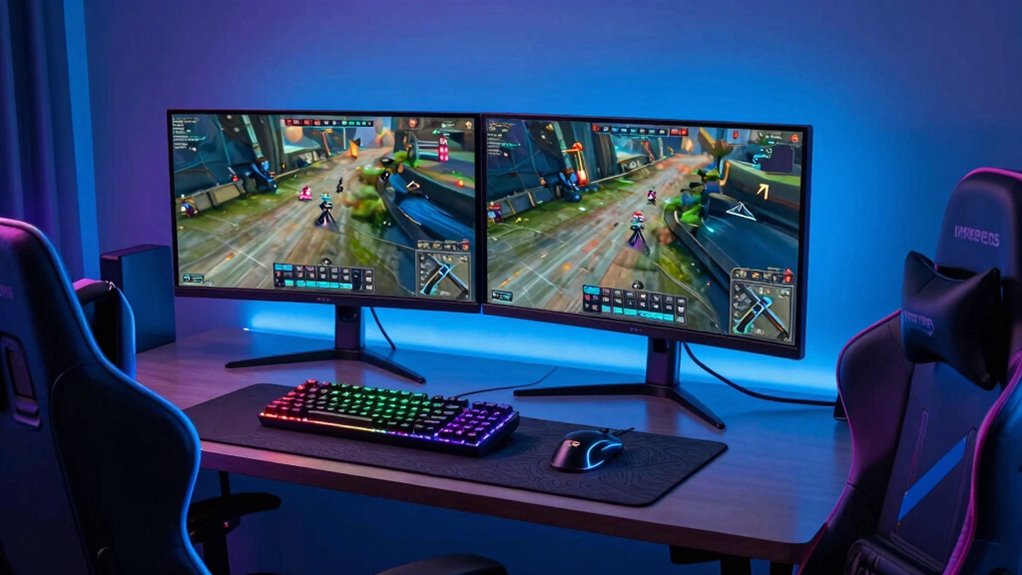

To make your gaming setup feel faster without upgrading your PC, focus on optimizing peripherals and display settings. Use high-quality, low-latency ports for your mouse, keyboard, and VR gear, and keep drivers updated. Lower graphics quality slightly to boost frame rates, match your monitor’s refresh rate, and disable V-Sync if needed. Keep your environment organized and minimize background processes. Small tweaks like these can dramatically improve responsiveness, and if you keep exploring, you’ll discover even more simple ways to boost speed.

Get hardware and tech essentials delivered free with Prime
- Fast, free delivery on millions of items
- Prime Video, Amazon Music and more included
- Member-only deals all year
Key Takeaways
- Optimize peripheral connections with wired, high-quality ports for minimal input lag.
- Adjust display settings to match monitor refresh rates for smoother visuals.
- Close unnecessary background applications to free system resources.
- Keep drivers and software updated for optimal performance and responsiveness.
- Organize the gaming environment to reduce distractions and improve reaction times.
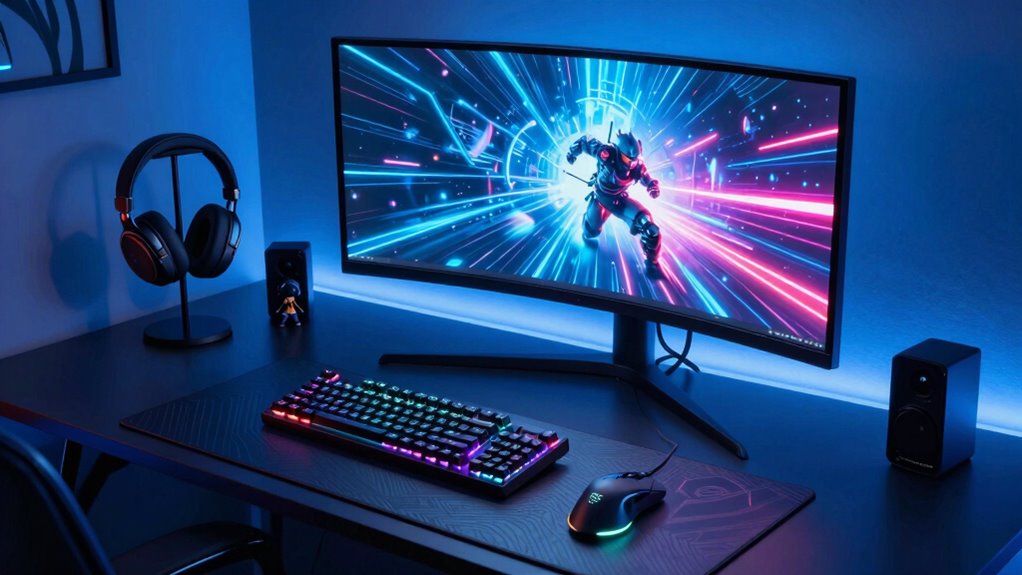
If your gaming setup feels sluggish despite your powerful PC, there are simple tweaks you can make to boost your experience without spending a dime. One of the most noticeable ways to improve how fast your system feels is by optimizing peripheral speed. Your mouse, keyboard, and especially your controller or VR gear directly impact your perception of responsiveness. If your mouse lags or feels sluggish, it can make even the most powerful PC seem slow. Make sure your peripherals are plugged into high-quality, low-latency ports, and update their drivers. Sometimes, switching to wired connections instead of wireless can considerably cut down input lag, giving you smoother, more immediate control. For VR immersion, this is especially critical; a delay in your VR headset or controllers can break the sense of presence and make the experience feel less responsive. Making sure your VR peripherals are running at peak speeds and are properly calibrated can make a noticeable difference. Additionally, peripheral calibration can fine-tune responsiveness and further enhance your gaming experience.
Beyond peripheral speed, adjusting in-game settings is a quick way to enhance the feeling of speed. Lowering graphics quality slightly can boost frame rates, making the gameplay feel smoother and more reactive. Even if you don’t want to sacrifice visual fidelity entirely, finding a balance between quality and performance can help your system feel faster. Turning off unnecessary background processes is another effective step. Many apps and system updates run quietly in the background, hogging resources and causing input lag or stuttering. Use your task manager to identify and close these programs, freeing up CPU and RAM for gaming. Additionally, understanding display refresh rates and how they influence responsiveness can help you optimize your setup for speed. Adjusting these settings can often provide a more seamless and responsive gaming experience. Regularly updating your hardware drivers can also ensure your system remains optimized for peak performance.
Checking for hardware bottlenecks can also reveal if other components are limiting your system’s responsiveness, even without a full upgrade. Optimizing your display settings also plays a crucial role. Enabling V-Sync can sometimes introduce input lag, so try turning it off if you’re experiencing sluggishness, especially if your monitor supports high refresh rates. If your monitor is capable of 120Hz or higher, ensure it’s set to that refresh rate. High-refresh-rate displays can make your gameplay feel instantly responsive, even if your PC isn’t top-tier. This creates a perception of speed that doesn’t rely on hardware upgrades but on better display settings. Additionally, regularly updating your graphics drivers can provide performance improvements and bug fixes that help maintain a smooth gaming experience.
Finally, consider the physical environment. A cluttered desk or tangled cables can slow down your reaction time and feel sluggish overall. Keeping your gaming area tidy and ensuring cables are well-managed reduces distractions and potential interference, making your setup feel more instantaneous. By focusing on peripheral speed, display settings, background processes, and environment, you can markedly enhance your gaming experience, making it feel faster and more responsive—all without needing to upgrade your PC.
high-quality low latency gaming mouse
As an affiliate, we earn on qualifying purchases.
As an affiliate, we earn on qualifying purchases.
Frequently Asked Questions
Can Monitor Refresh Rates Impact Perceived Gaming Speed?
Yes, monitor refresh rates can impact perceived gaming speed. Higher refresh rates reduce frame latency, making your gameplay feel smoother and more responsive. This enhances visual clarity, allowing you to see fast-moving objects more clearly, giving you a competitive edge. Even if your PC stays the same, upgrading your monitor’s refresh rate can considerably improve your gaming experience by making everything appear faster and more fluid.
Does Cable Management Affect Gaming Responsiveness?
Cable management might seem like a small detail, but it’s key to gaming responsiveness. When cables are tidy, hardware optimization improves because airflow stays clear, preventing overheating. Plus, organized cables reduce network latency issues caused by tangled or damaged connections, ensuring smoother gameplay. Think of it as clearing the way for your signals to flow seamlessly—making your gaming setup feel faster and more responsive even before any upgrades.
How Do Ambient Lighting Conditions Influence Game Performance Perception?
Ambient lighting greatly influences your visual perception during gaming. Bright or uneven lighting can cause glare and eye strain, making your gameplay feel sluggish or less responsive. Ideal ambient lighting, such as soft, indirect light, reduces eye fatigue and enhances contrast, making fast-paced actions seem sharper. By controlling your ambient lighting, you create a more comfortable environment that improves your perception of game speed and responsiveness without needing hardware upgrades.
Can Mouse and Keyboard Settings Alter Perceived Game Speed?
Yes, your mouse and keyboard settings can change how fast a game feels. Adjusting sensitivity and response time impacts your control and reaction speed, making movements smoother or sharper. Haptic feedback enhances immersion by providing tactile cues, reinforcing quick reactions. Clear visuals improve perception of game speed, so fine-tune your settings for visual clarity and ideal haptic feedback, creating a more responsive, quick-feeling gaming experience even before upgrading your PC.
Do Sound Settings Affect the Feeling of Game Responsiveness?
Yes, sound settings do influence how responsive a game feels. Good audio feedback from high-quality headphones can make you perceive actions faster because you clearly hear cues and environmental sounds. If your headphone quality is poor, important sounds might be missed, slowing down your reactions. Adjusting sound settings for maximum feedback guarantees you stay immersed and responsive, making your gaming experience feel quicker even before you consider hardware upgrades.
wired gaming keyboard with low input lag
As an affiliate, we earn on qualifying purchases.
As an affiliate, we earn on qualifying purchases.
Conclusion
Think of your gaming setup as a finely tuned race car. Even without upgrading the engine, tuning the tires, adjusting the suspension, and streamlining the interior can make it feel faster and more responsive. Small tweaks, like optimizing your monitor placement and minimizing clutter, are like fine-tuning your car’s handling. With these adjustments, you’ll experience a smoother, quicker ride—proving that sometimes, the secret to speed isn’t in the engine, but in the details that surround it.
high refresh rate gaming monitor 120Hz
As an affiliate, we earn on qualifying purchases.
As an affiliate, we earn on qualifying purchases.
As an affiliate, we earn on qualifying purchases.
Halloween Picks
halloween
As an affiliate, we earn on qualifying purchases.